Model Test
Once a project has a trained model, use Model Test — the playground — to feed it new inputs and inspect predictions in real time.
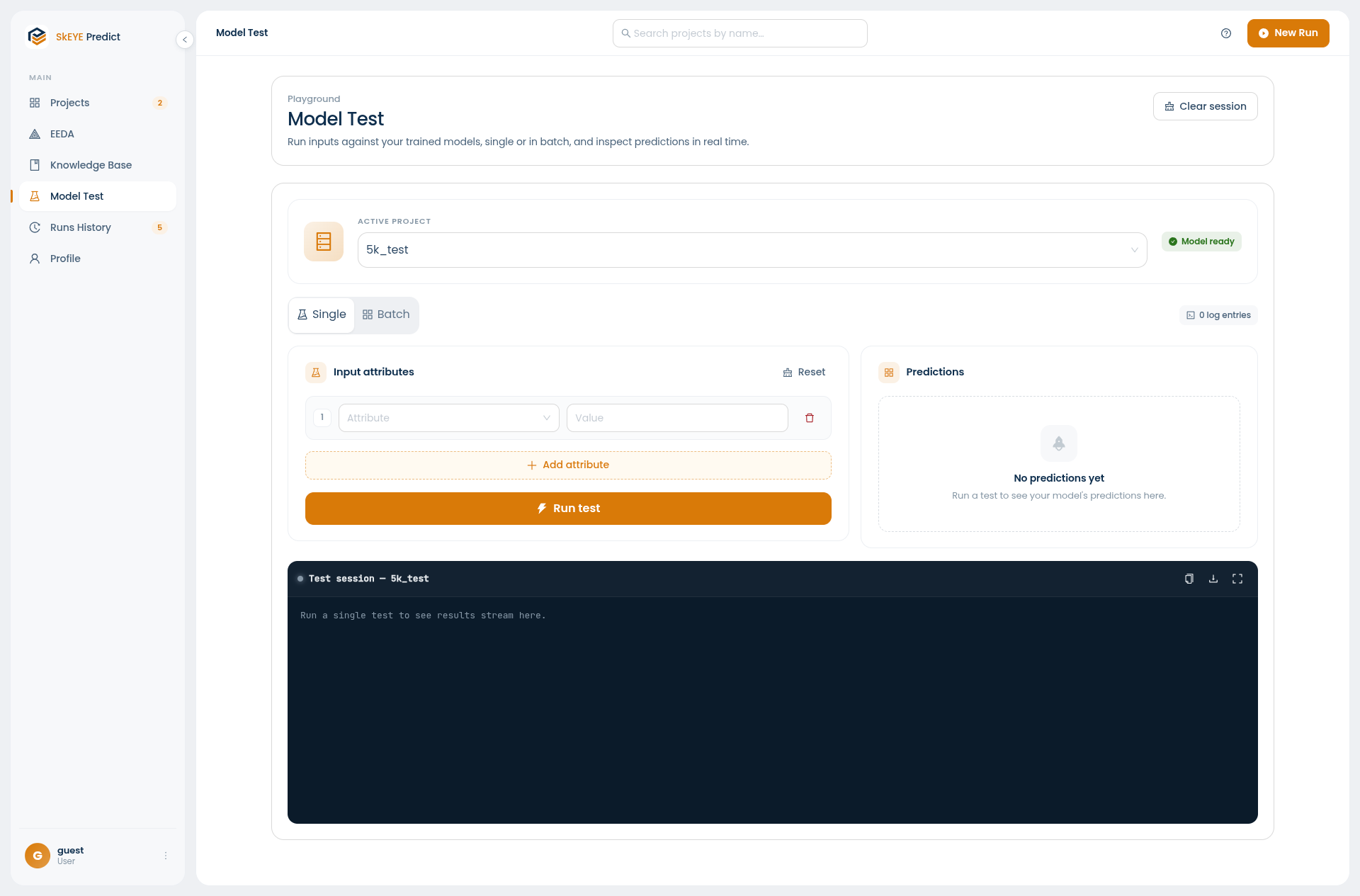
Run a test
- Open Model Test and pick an active project. A Model ready badge confirms the project has a trained model available.
- Choose a mode:
- Single — enter one input and run it. Good for quick checks.
- Batch — upload a
.datfile (maximum 3 MB) to test many inputs at once.
- In Single mode, build your input under Input attributes: pick an attribute, give it a value, and use Add attribute for as many as you need. Reset clears the form.
- Click Run test (or Run batch test).
Read the predictions
Each prediction shows:
- Its score
- The conditions that fired
- Any annotations
- Supporting metrics — support, precision, lift, and non-randomness
In Batch mode, results appear as compact cards in a scrollable grid. Use the search box to filter by input, and click any card to open a drawer with that prediction's full details.
The test session log
Results also stream into the test session panel at the bottom, which you can copy, download, or expand to full screen. Use Clear session to empty the playground and start fresh.