EEDA — Easy Exploratory Data Analyser
EEDA helps you understand how your model performs across different combinations of attributes, and lets you turn useful patterns into reusable rules. You bring the business knowledge; EEDA tests your hypotheses against the data and answers instantly.
1. Assign your attributes
Open EEDA and select a project. In the selection view, move each attribute into:
- Conditions — the "if" side of your rule
- Labels — the outcome you care about
Unassigned attributes are listed separately; use the add buttons to move them across. You can come back and change the assignment at any time with Edit selection.
2. Build your rule
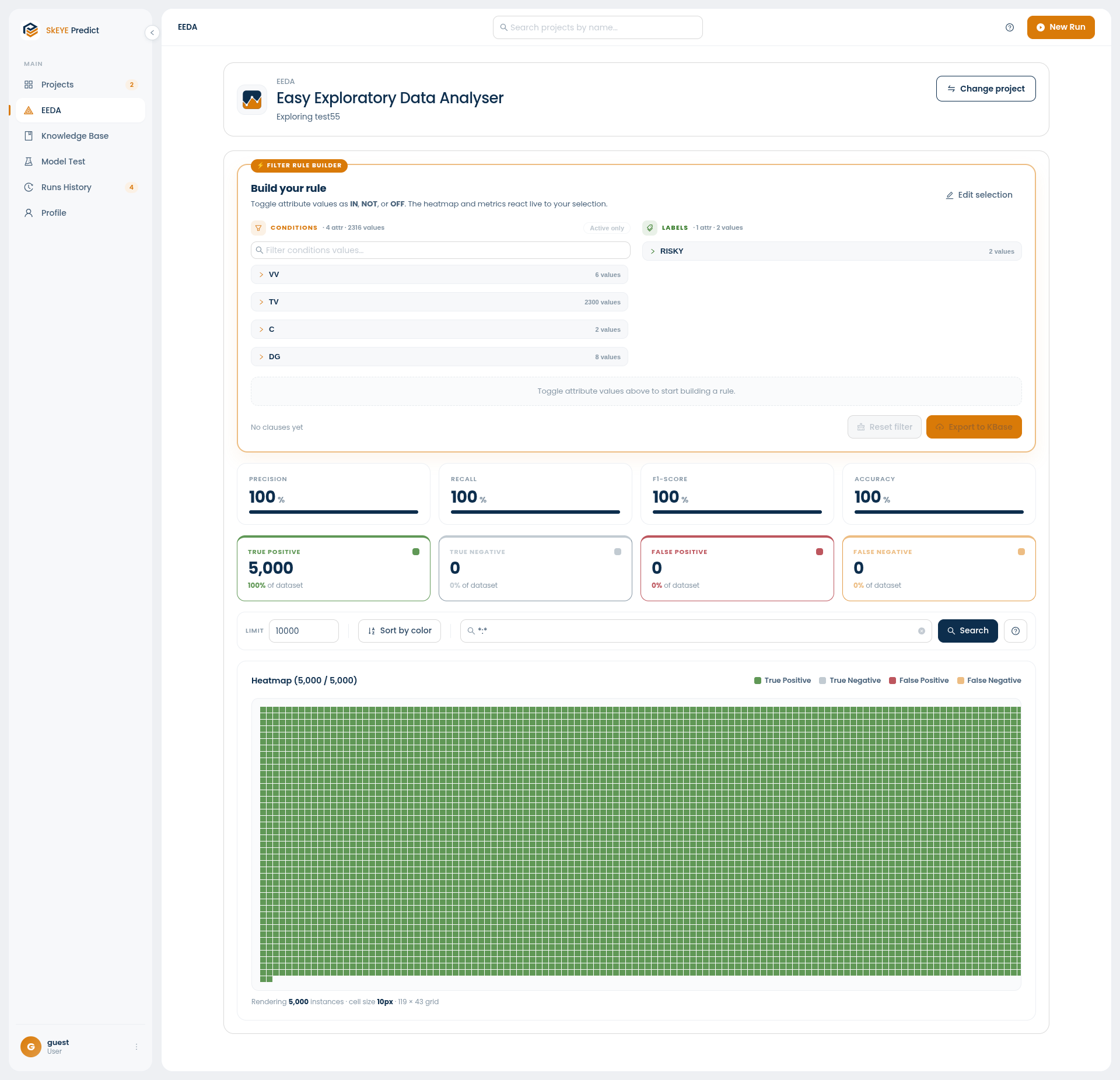
Expand any attribute to see its values, then set a state on each one:
| State | Meaning |
|---|---|
| IN | The value must be present |
| NOT | The value must not be present |
| OFF | Ignore this value |
The heatmap and every metric react live as you toggle — so you can feel your way toward a rule that works instead of guessing.
3. Read the results
Four headline metrics tell you how your rule is doing:
- Precision — of the instances the rule caught, how many were right
- Recall — of the instances it should have caught, how many it found
- F1-score — the balance between precision and recall
- Accuracy — how often the rule is right overall
Beneath them, the outcome breakdown shows True Positive, True Negative, False Positive, and False Negative counts, each with its share of the dataset.
The heatmap renders one cell per instance, coloured by that same four-way outcome, so you can see at a glance where your rule wins and fails. Use Sort by color to group outcomes together, Limit to cap how many instances are drawn, and the search box to narrow the set.
4. Export to the Knowledge Base
When you've found a pattern worth keeping, click Export to KBase to save it as a rule.
Export to KBase enables once you have at least one condition and one label marked — either IN or NOT.
A NOT condition or label is preserved through the export and later displayed as a clearly marked NOT tag, so it's never confused with a normal value. Use Reset filter to clear your selection and start over.