Connecting to a new database
Skeyecharts itself doesn't have a storage layer to store your data but instead pairs with your existing SQL-speaking database or data store.
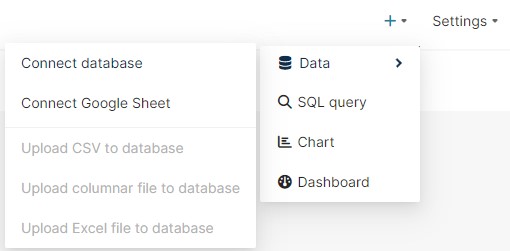
First things first, we need to add the connection credentials to your database to be able to query and visualize data from it. Under the + menu in the top right, select Data, and then the Connect Database option:
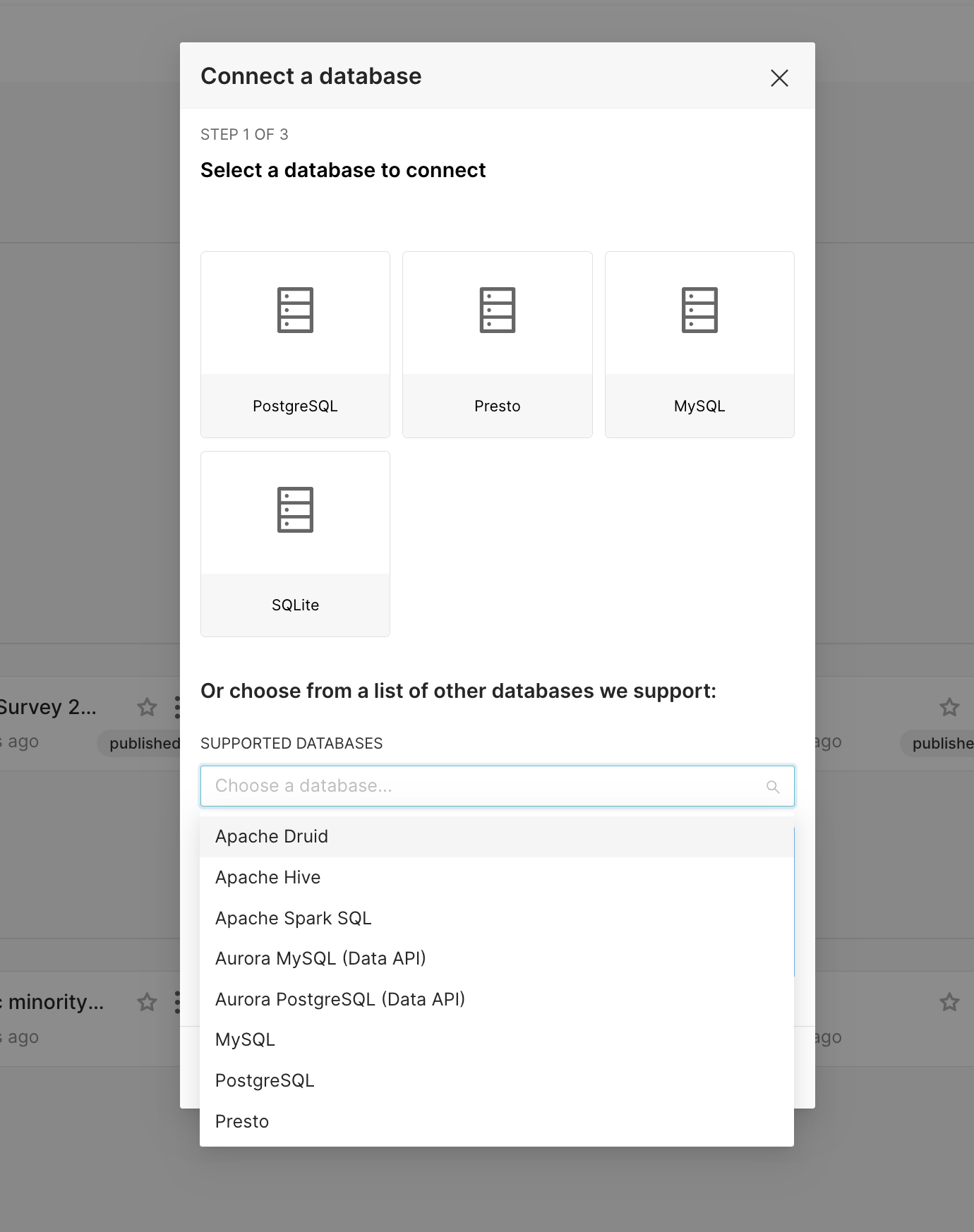
Then select your database type in the resulting modal:
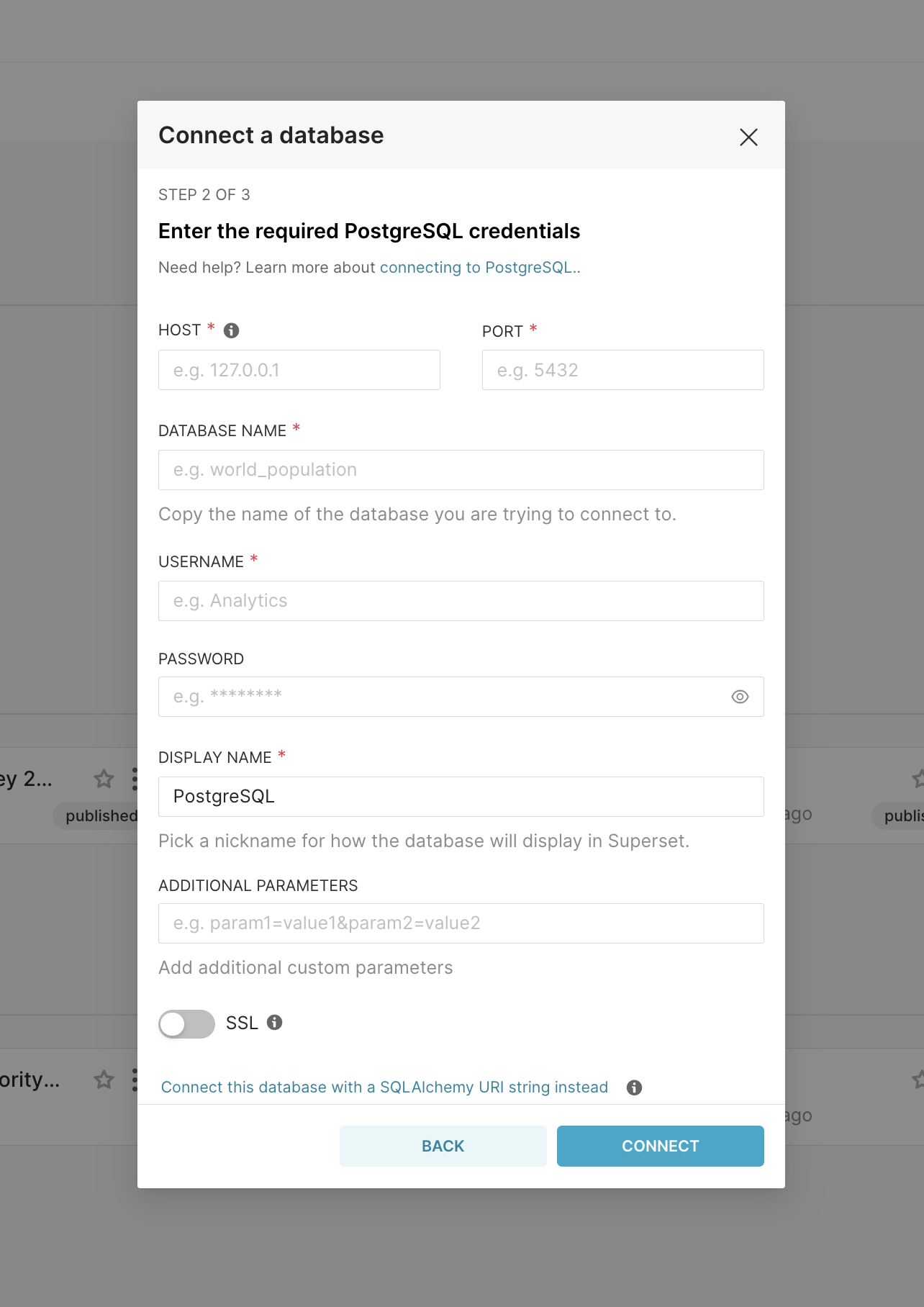
Once you've selected a database, you can configure a number of advanced options in this window, or for the purposes of this walkthrough, you can click the link below all these fields:
Once you've clicked that link you only need to specify two things (the database name and SQLAlchemy URI):
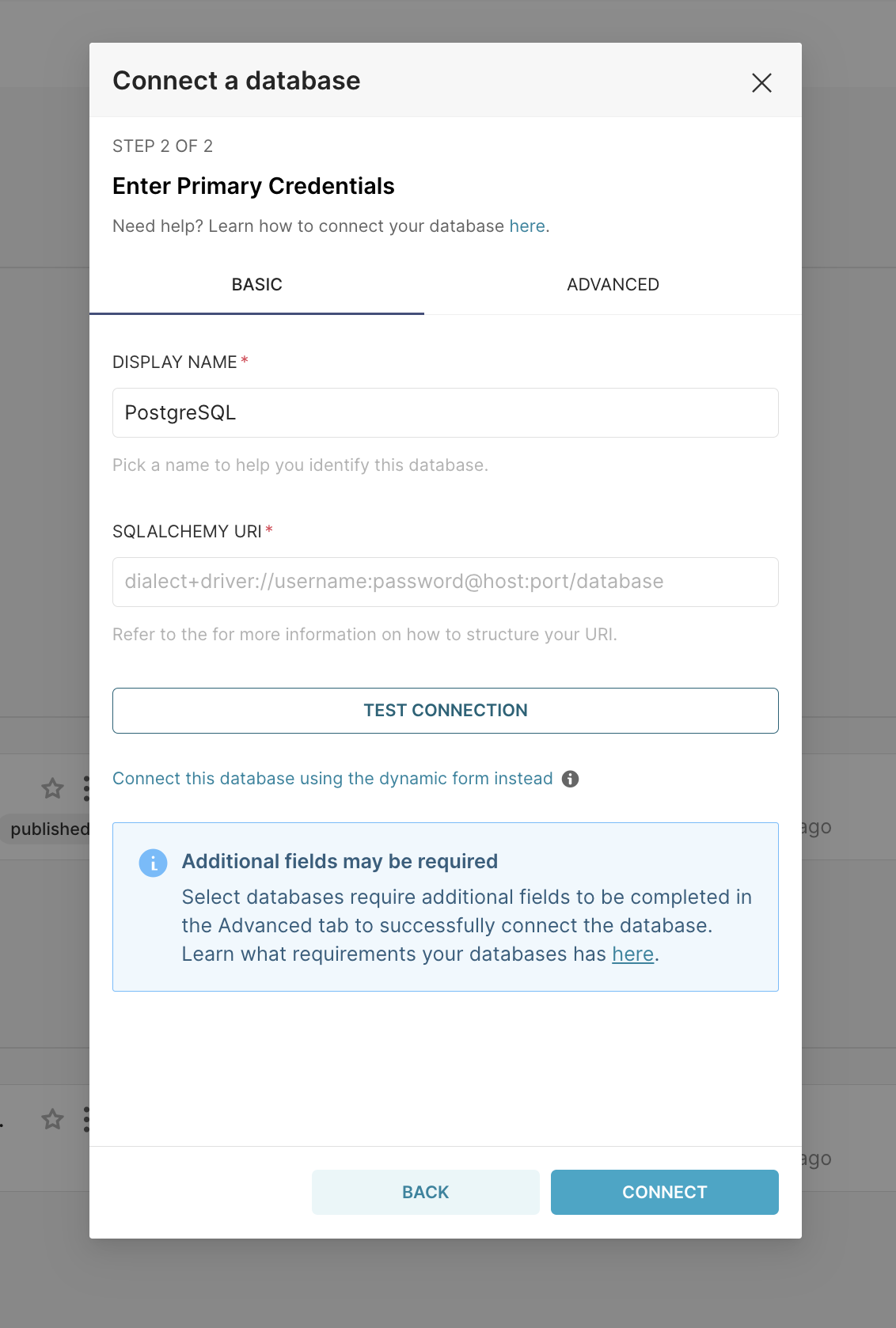
As noted in the text below the form, you should refer to the SQLAlchemy documentation on creating new connection URIs for your target database.
Click the Test Connection button to confirm things work end to end. If the connection looks good, save the configuration by clicking the Connect button in the bottom right corner of the modal window:
Congratulations, you've just added a new data source in Skeyecharts!