Start Pipelines
The Start Pipelines processor starts one or more pipelines in parallel upon receiving a record.
The Start Pipelines processor is an orchestration stage that you use in orchestration pipelines. Orchestration stages perform tasks, such as schedule and start pipelines and Control Hub jobs, that you can use to create an orchestrated workflow across the SkeyeIngest platform. For example, an orchestration pipeline can use the Cron Scheduler origin to generate a record every Monday at 6 AM to trigger the Start Pipelines processor, which starts a pipeline that loads data from the previous week and generates a report.
The Start Pipelines processor can start pipelines that run on any SkeyeIngest execution engine, such as Data Collector, Data Collector Edge, or Transformer. However, the processor can only start pipelines that run on the specific execution engine configured in stage properties. You can use additional Start Pipelines processors to start pipelines on different execution engines.
After performing its task, the Start Pipelines processor updates the orchestration record, adding details about the pipelines that it started. Then, it passes the record downstream. You can pass the record to an orchestration stage to trigger another task. Or, you can pass it to a non-orchestration stage to perform other processing. For example, you might use a Stream Selector processor to pass the record to different stages based on a pipeline completion status.
When you configure the Start Pipelines processor, you define the URL of the execution engine that runs the pipelines. You specify the names or IDs of the pipelines to start along with any runtime parameters to use. For an execution engine registered with Control Hub, you specify the Control Hub URL, so the processor starts the pipelines through Control Hub.
You can configure the processor to reset the origins in the pipelines when possible, and to run the pipelines in the background. When running pipelines in the background, the processor immediately updates and passes the input record downstream instead of waiting for the pipelines to finish.
You also configure the user name and password to run the pipeline and can optionally configure SSL/TLS properties.
Pipeline Execution and Data Flow
The Start Pipelines processor starts the specified pipelines upon receiving a record. The processor adds task details to the record and passes it downstream based on how the pipelines run:
Run pipelines in the foreground
By default, the processor starts pipelines that run in the foreground. When the pipelines run in the foreground, the processor updates and passes the orchestration record downstream after all the started pipelines complete.
Run pipelines in the foreground to ensure that the task defined in the subsequent stage is not performed until all of the pipelines complete.
Run pipelines in the background
You can configure the processor to start pipelines that run in the background. When pipelines run in the background, the processor updates and passes the orchestration record downstream immediately after starting the pipelines.
The processor does not track or provide information about whether the pipelines finish successfully.
Run pipelines in the background to enable the task defined in the subsequent orchestration stage to occur in parallel with the pipelines started by the processor.
Generated Record
The Start Pipelines processor updates the orchestration record that it receives with information about the pipelines that it starts.
The processor adds the following fields:
| Field Name | Description |
|---|---|
| <unique task name> | List Map field within the orchestratorTasks field of the record. Contains the following fields:_ pipelineIds - IDs of the pipelines that the stage is configured to start. _ pipelineResults - List Map of pipeline run details for each pipeline. * success - Boolean field that indicates whether all pipelines completed successfully. Included only when the pipelines run in the foreground. |
| <pipeline ID> | List Map field within the pipelineResults field that provides details about each pipeline. Contains the following fields:_ pipelineId - ID of the pipeline. _ pipelineTitle - Name of the pipeline. _ startedSuccessfully - Boolean field that indicates whether a pipeline was started successfully. _ finishedSuccessfully - Boolean field that indicates whether a pipeline completed successfully. Included only when the pipeline runs in the foreground. _ pipelineMetrics - Map field that contains metrics for the pipeline and individual pipeline stages. Included only when the pipeline runs in the foreground. _ pipelineStatus - Status of the pipeline. For more information, see Understanding Pipeline States. _ pipelineStatusMessage - Status message for the pipeline. _ committedOffsetsStr - Offset details for the pipeline. Included only when the pipeline runs in the foreground. |
For example, the following preview shows information provided by a Start Pipelines processor with the Start_ProcessPipelines task name:
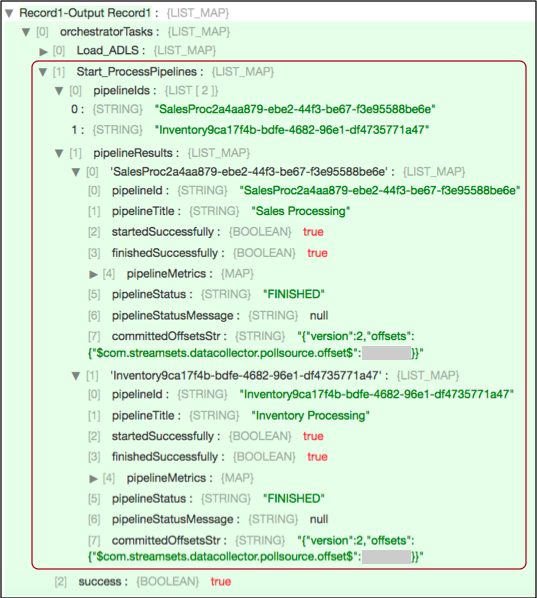
The processor starts two pipelines that run in the foreground: Sales Processing and Inventory Processing. As you can tell from the finishedSuccessfully fields, both pipelines completed successfully.
For an example of a full orchestration record, see Example.
Configuring a Start Pipelines Processor
Configure a Start Pipelines processor to start a Data Collector, Data Collector Edge, or Transformer pipeline. The Start Pipelines processor is an orchestration stage that you use in orchestration pipelines.
-
In the Properties panel, on the General tab, configure the following properties:
General Property Description Name Stage name. Description Optional description. Required Fields Fields that must include data for the record to be passed into the stage.
Tip: You might include fields that the stage uses.
Records that do not include all required fields are processed based on the error handling configured for the pipeline.Preconditions Conditions that must evaluate to TRUE to allow a record to enter the stage for processing. Click Add to create additional preconditions.
Records that do not meet all preconditions are processed based on the error handling configured for the stage.On Record Error Error record handling for the stage:
_ Discard - Discards the record.
_ Send to Error - Sends the record to the pipeline for error handling.
* Stop Pipeline - Stops the pipeline. Not valid for cluster pipelines. -
On the Pipeline tab, configure the following properties:
Pipeline Property Description Task Name Name for the task to perform. The name must be unique within the pipeline.
The task name is used to group the data that the stage adds to the generated record.
Tip: Avoid using spaces in the task name if you want to access information added to the record, such as a pipeline status, from within the pipeline.Execution Engine URL URL of the execution engine that runs the pipelines. Execution engines include Data Collector, Data Collector Edge, and Transformer. Pipelines List of pipelines to start in parallel. For each pipeline, enter:
_ Identifier Type - Information used to identify the pipeline. Select Pipeline ID or Pipeline Title.
_ Identifier - ID or name of the pipeline.
To find the pipeline ID from the execution engine UI, click the pipeline canvas and then click the General tab in the Properties panel.
To find the pipeline ID from Control Hub, in the Pipelines view, expand the pipeline and click Show Additional Info.
* Runtime Parameters - Parameters defined in a pipeline and specified when starting the pipeline.
Use the following format:
<br/> {<br/> "\<parameter name\>": \<numeric value\>,<br/> "\<parameter name\>": "\<string value\>"<br/> }<br/>
To include another pipeline, click the Add icon.
You can use simple or bulk edit mode to specify pipelines.Reset Origin Resets the origin before starting a pipeline, if the origin can be reset. For a list of origins that can be reset, see Resetting the Origin. Control Hub Enabled Starts pipelines through Control Hub. Select this property when the execution engine is registered with Control Hub. Control Hub URL URL of Control Hub where the execution engine is registered:
_ For Control Hub cloud, enter https://cloud.skeyeingest.com.
_ For Control Hub on-premises, enter the URL provided by your system administrator. For example, https://<hostname>:18631.Run in Background Runs started pipelines in the background.
When running pipelines in the background, the stage passes the orchestration record downstream immediately after starting the pipelines.
By default, the stage runs pipelines in the foreground, passing the record downstream only after all started pipelines complete.Status Check Interval Milliseconds to wait between checks for the completion status of the started pipelines. Available when running started pipelines in the foreground. -
On the Credentials tab, configure the following properties:
Credentials Property Description User Name User that runs the pipeline. Enter a user name for the execution engine or enter a Control Hub user name if the engine is registered with Control Hub. Password Password for the user.
Tip: To secure sensitive information such as user names and passwords, you can use runtime resources or credential stores. -
To use SSL/TLS, click the TLS tab and configure the following properties.
TLS Property Description Use TLS Enables the use of TLS. Use Remote Truststore Enables loading the contents of the truststore from a remote credential store or from values entered in the stage properties. For more information, see Remote Keystore and Truststore. Trusted Certificates Each PEM certificate used in the remote truststore. Enter a credential function that returns the certificate or enter the contents of the certificate.
Using simple or bulk edit mode, click the Add icon to add additional certificates.Truststore File Path to the local truststore file. Enter an absolute path to the file or a path relative to the Data Collector resources directory: $SDC_RESOURCES.
For more information about environment variables, see Data Collector Environment Configuration.
By default, no truststore is used.Truststore Type Type of truststore to use. Use one of the following types:
_ Java Keystore File (JKS)
_ PKCS #12 (p12 file)
Default is Java Keystore File (JKS).Truststore Password Password to the truststore file. A password is optional, but recommended.
Tip: To secure sensitive information such as passwords, you can use runtime resources or credential stores.Truststore Trust Algorithm Algorithm to manage the truststore.
Default is SunX509.Use Default Protocols Uses the default TLSv1.2 transport layer security (TLS) protocol. To use a different protocol, clear this option. Transport Protocols TLS protocols to use. To use a protocol other than the default TLSv1.2, click the Add icon and enter the protocol name. You can use simple or bulk edit mode to add protocols.
Note: Older protocols are not as secure as TLSv1.2.Use Default Cipher Suites Uses a default cipher suite for the SSL/TLS handshake. To use a different cipher suite, clear this option. Cipher Suites Cipher suites to use. To use a cipher suite that is not a part of the default set, click the Add icon and enter the name of the cipher suite. You can use simple or bulk edit mode to add cipher suites.
Enter the Java Secure Socket Extension (JSSE) name for the additional cipher suites that you want to use.